Knowledge Bases
Knowledge Base User Guide
1. Introduction
The Knowledge Base acts as the "brain" and "memory" for your AI Agents. By uploading corporate documents, product manuals, service policies, or FAQs, you enable the AI to understand and retain this critical information.
When a customer asks a question, instead of hallucinating an answer, the AI retrieves relevant facts from the Knowledge Base to generate an accurate, fact-based response. This technology is known as RAG (Retrieval-Augmented Generation).
Core Value
- Reduce Costs: Automatically resolve up to 80% of repetitive inquiries.
- Improve Accuracy: AI answers are grounded in your provided documents, preventing misinformation.
- 24/7 Availability: Instant responses to questions about product specs, shipping policies, and more, anytime.
2. Typical Use Cases
Case 1: E-commerce After-Sales Automation
Pain Point: Support teams answer the same questions daily: "Return address?", "Who pays for shipping?", "Shipping times?". Solution:
- Create a Knowledge Base named "After-Sales Standards".
- Upload your "Return Policy" and "Shipping & Delivery Guide" as text documents.
- Enable this Knowledge Base in your AI Agent settings. Result: When a customer asks, "Can I return this shirt if it doesn't fit?", the AI precisely extracts the policy: "Returns are accepted within 7 days. Return shipping is covered by the buyer for non-quality issues," and responds politely.
Case 2: Technical Support for Complex Products
Pain Point: Selling high-tech products (cameras, precision instruments) involves complex specs that are hard for new agents to memorize. Solution:
- Create a "Product Specs Database".
- Upload "Specification Sheets" and "Troubleshooting Guides" for all active products. Result: A customer asks, "What is the water resistance rating of the X200?", and the AI instantly retrieves the data: "The X200 is IP68 rated, capable of withstanding submersion in 1.5 meters of water for 30 minutes."
Case 3: Multilingual Global Support
Pain Point: Expanding globally but lacking support staff for every local language. Solution:
- Upload your existing product documentation (in English or Chinese).
- The AI understands queries in Spanish, Japanese, Arabic, etc., retrieves the relevant info, and responds fluently in the customer's native language.
3. Quick Start Guide
Step 1: Create a Knowledge Base
- Go to the "Knowledge Base" management page and click "Create Knowledge Base".
- Enter a name (e.g., "General FAQ").
- The system automatically selects the best available Embedding Model, so no technical configuration is needed.
Step 2: Add Knowledge (Documents)
- Click into your newly created Knowledge Base.
- Click "Add Document".
- Title: Enter a clear topic, e.g., "2024 Loyalty Points Rules".
- Content: Copy and paste your document text into the box.
- Tip: For very long documents, splitting them by chapter into separate entries often yields better search results.
Step 3: Test and Verify
- Switch to the "Test" tab.
- Enter a simulated user question in the search box, e.g., "How do I redeem points?".
- The system will show the retrieved document snippets and their Relevance Score. If the correct content appears, your setup is successful.
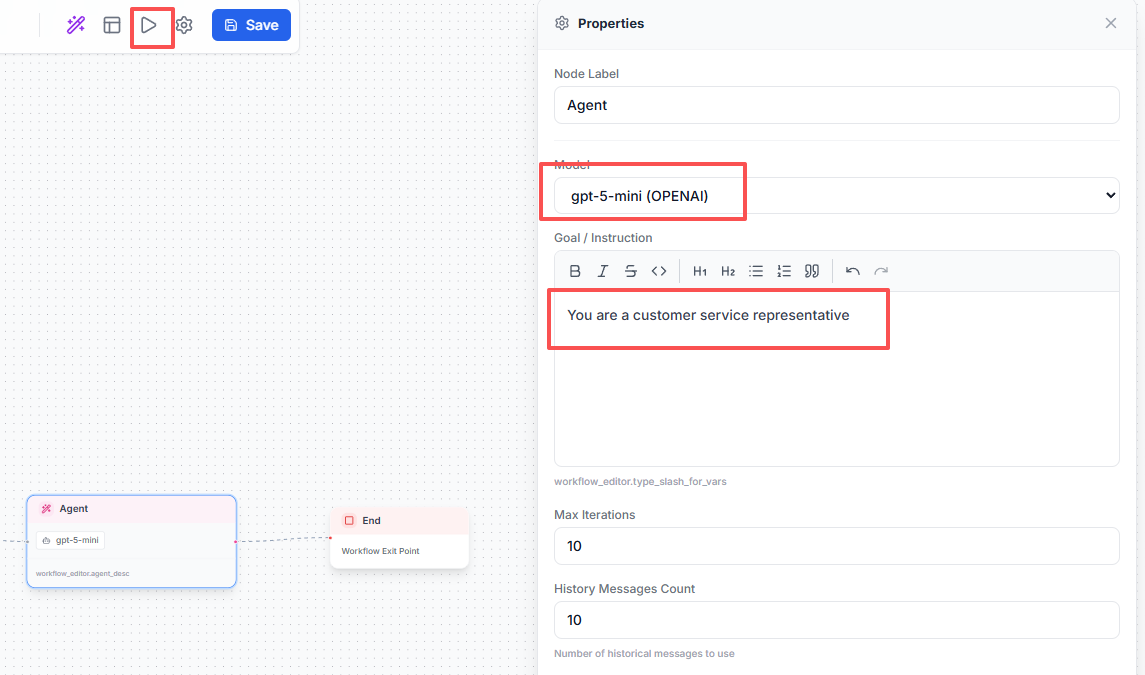
- Use a simple workflow to quickly test the knowledge base
4. Best Practices
- Content is King: The quality of AI answers depends entirely on the quality of your documents. Ensure content is accurate and unambiguous.
- Structured Data: For FAQs, using a "Q: Question \n A: Answer" format helps the AI identify Q&A pairs more effectively.
- Keep it Fresh: When business rules change (e.g., shipping rates), update or delete old documents immediately to prevent the AI from giving outdated advice.
- Use Chunking: The system automatically splits long texts, but manually separating distinct topics (e.g., "Return Policy" vs. "Invoice Guide") into different documents is usually better than combining them.
5. FAQ
Q1: How long does it take for the AI to learn new documents?
A: Usually just a few seconds to a minute. The system needs to "vectorize" the text. Once the document status shows
COMPLETED, it is ready for retrieval.
Q2: Why can't I find the content I just uploaded?
A:
- Check if the document status is
COMPLETED.- Check the "Min Score" setting in the Test tab. If set too high (e.g., 0.9), it might filter out relevant results. Try 0.5 or 0.6.
- Ensure your search keywords actually exist in the document text.
Q3: What's the difference between a Knowledge Base and "Quick Replies"?
A:
- Quick Replies: Pre-written static scripts sent manually by human agents.
- Knowledge Base: A dynamic database for the AI. The AI reads the content and formulates a natural answer specific to the user's question, rather than copy-pasting text.
Q4: Can I upload Word or PDF files?
A: Currently, the system supports direct text input. For Word/PDF files, please open them, select all text, copy, and paste it into the system's input box.
Q5: What if the AI gives a wrong answer?
A: This usually happens if the Knowledge Base lacks information or contains conflicting data.
- Search for the question in the Knowledge Base to see what documents are retrieved.
- If nothing is found, add a relevant document.
- If an incorrect document is found, edit or delete it.